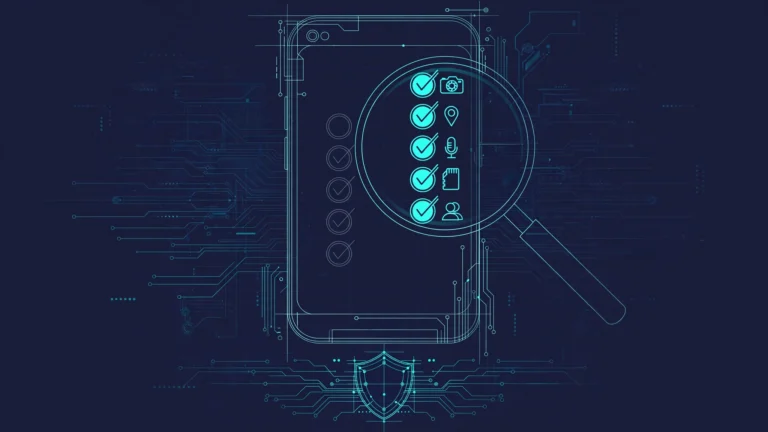
Android 17’s security work targets specific threats: banking scams, device theft, malicious apps, spyware. The common thread is on-device processing – AI threat detection, hardware isolation, and biometric checks that don’t send your data to cloud servers.
TL;DR: Android 17 pushes security onto the device: on-device AI threat detection with dynamic signal monitoring, hardware-isolated AI via AISeal and pKVM, local banking-scam call verification, tougher Advanced Protection, biometric Mark as Lost, default-on theft protection, post-quantum crypto, and a 2G kill switch. Most protections are automatic; this post shows what to enable.
Live Threat Detection: dynamic signal monitoring
Live Threat Detection analyzes app behavior with on-device machine learning. Android 17 adds dynamic signal monitoring, which watches for suspicious patterns in real time and lets Google push new detection rules without an OS update.
What it detects
- SMS forwarding: apps that silently forward texts to external numbers – stops malware intercepting two-factor codes.
- Accessibility overlay abuse: apps showing imperceptible content to trick users into unintended taps, like approving payments.
- Icon manipulation: apps that hide or change their icon and launch from the background.
- Accessibility permission abuse: apps misusing accessibility for screen control or data extraction.
How it works
- On-device AI monitors system interactions continuously.
- Google pushes new detection rules remotely when threats emerge.
- Apps matching suspicious patterns get flagged.
- You get a warning before damage occurs.
No app behavior data leaves the device. Requirements: Android 17 for dynamic signal monitoring, Android 11+ for basic Live Threat Detection, and availability on select devices in the second half of 2026.
Check the status
- Settings, Security and privacy, Google Play Protect.
- Look for the Live Threat Detection toggle and enable it if off.
It runs silently – you only see notifications when something is detected.
AISeal with pKVM: hardware-isolated AI
On-device AI processes sensitive data: messages, photos, location patterns. Without isolation, a compromised OS could read that data during processing. AISeal puts AI workloads in a separate virtual machine protected by pKVM (protected Kernel-based Virtual Machine), with memory isolation enforced by the hypervisor at the hardware level.
Private Compute Services mediates between the protected VM and external services, verifying no personal data passes through to the cloud. The system also provides cryptographic proof that AI processing stayed inside the isolated environment.
This is what makes features like Live Threat Detection, Smart Reply, Now Playing song recognition, and on-device notification summaries possible without uploading the underlying data.
AISeal needs hardware support (ARM TrustZone or equivalent). Check yours: Settings, About phone, tap Build number to enable developer mode, then System, Developer options, look for pKVM or Protected KVM entries. Not all Android 17 devices will have it initially; the Pixel 9 series and late-2026 flagships are expected to support it.
Banking scam call protection
Scammers spoof caller IDs to impersonate banks and trick people into revealing credentials or authorizing transfers. Spoofed calls drive an estimated $980 million in annual fraud losses worldwide.
When a participating bank’s app is installed and you’re signed in:
- An incoming call appears to be from the bank.
- Android asks the bank’s app: “Did you initiate this call?”
- If the answer is no, Android ends the call immediately.
- Banks can also designate inbound-only numbers that are never used for outgoing calls.
Verification happens locally between the bank app and Android – no cloud lookups.
Initial rollout (2026): Revolut, Itau, Nubank, with more banks added through the year. Banks must integrate the verification API into their Android apps. No setup required – if you have a participating bank’s app installed and logged in, you get a notification when a spoofed call is blocked.
Advanced Protection enhancements
Advanced Protection is Android’s strongest security mode, for users at genuine risk of targeted attacks: journalists, activists, politicians, executives. Android 17 adds new restrictions:
- Accessibility service lockdown: apps can no longer request accessibility permissions unless explicitly labeled as accessibility tools in Google Play. Blocks a common spyware technique.
- Disabled features: device-to-device unlocking (can’t unlock your phone from another owned device), Chrome WebGPU (GPU acceleration off, smaller attack surface), and AI scam detection on chat notifications.
- USB protection: no data transfer over USB while locked. Pixel devices on Android 16+, expanding to more devices in 2026.
- Intrusion logging: records system events in a privacy-preserving format for forensic analysis, developed with Amnesty International and Reporters Without Borders. Logs contain system interaction patterns, not personal data.
Enable it
- Settings, Security and privacy, More security settings, Advanced Protection.
- Toggle ON, review the restrictions (some conveniences stop working), confirm.
Warning: this significantly restricts device functionality. Only enable it if you face genuine targeted-threat risk.
Mark as Lost: biometric lock
If a stolen device’s thief knows your PIN, they could disable Find My Device tracking. Android 17’s Mark as Lost adds a biometric requirement that survives PIN compromise.
When you mark a device as lost through Find Hub (android.com/find): the device requires biometric unlock (fingerprint or face), the Quick Settings panel is hidden (no disabling WiFi/Bluetooth), new network connections are blocked, and tracking stays active even if the thief knows your PIN. They cannot turn off tracking without your fingerprint or face.
Setup and use
Requirements: biometric authentication enrolled, Find My Device enabled, Google account signed in.
- Visit android.com/find from any browser and sign in.
- Select the stolen device.
- Click Secure device, then Mark as lost.
- Follow the prompts to add contact information. The device locks with the biometric requirement immediately.
Default-on theft protections
Based on pilots in Brazil, Android 17 enables theft protections by default on all new and factory-reset devices, and backports them to Android 10+ in Argentina, Chile, Colombia, Mexico, Peru, and the UK:
- Remote Lock: lock the device with just your phone number, no password.
- Theft Detection Lock: AI detects snatch-and-run motion patterns and locks automatically.
- Offline Device Lock: locks after an extended offline period.
These activate without configuration. Disable individually at Settings, Security and privacy, Device security.
Post-quantum cryptography
Android 17 starts the transition to post-quantum algorithms, resistant to attacks from future quantum computers that could break current factoring- and discrete-log-based encryption. The new algorithms run alongside traditional encryption. Transparent to users and apps – no action required.
2G disable
2G networks lack mutual authentication, so fake cell towers (IMSI catchers) can impersonate carriers and intercept calls and SMS. Android 17 improves on the disable-2G toggle from Android 12: Settings, Network and internet, SIMs, select your SIM, toggle “Allow 2G” off. The device will only use 4G and 5G – no service where only 2G exists, but no IMSI-catcher exposure either.
Chrome APK malware scanning
When you download an APK in Chrome with Safe Browsing on, Android 17 scans it for known malware before the download completes. Matching signatures get the download blocked with an explanation. Requirements: Chrome on Android, Safe Browsing enabled (Settings, Privacy and security, Safe Browsing), Android 17.
Before installing any sideloaded APK, verify its SHA-256 hash and read the VirusTotal report.
Security bulletin
Android 17 shipped with security patch level 2026-07-01, addressing 23 vulnerabilities:
| Component | Critical | High | Total |
|---|---|---|---|
| Framework | 0 | 7 | 7 |
| System | 0 | 16 | 16 |
All High severity, none Critical. Most fixes target elevation of privilege and information disclosure. Full details in the Android 17 Security Release Notes.
Check your patch level
- Settings, About phone, Android version or Security update.
- Look at the Security patch level date. Android 17 should show 2026-07-01 or later. If it’s older than 60 days, check for system updates.
Key takeaways
- Android 17’s theme is on-device security: threat detection, scam-call verification, and AI workloads that never leave the phone.
- Turn these on: Live Threat Detection (Play Protect), disable 2G in SIM settings, Chrome Safe Browsing for APK scanning, and Advanced Protection if you face targeted threats.
- Theft protection is now default-on for new devices; Mark as Lost adds a biometric lock that survives PIN compromise.
- The launch bulletin (patch level 2026-07-01) addressed 23 High-severity vulnerabilities, none Critical.
What to enable
Everyone: Live Threat Detection (automatic on supported devices), banking scam protection (automatic with participating bank apps), the 2G toggle off (unless you travel through 2G-only coverage), Chrome APK scanning (via Safe Browsing).
High-risk users (journalists, activists, executives): Advanced Protection, Intrusion Logging for forensics if compromised, USB Protection on supported devices.
Theft concerns: configure Find My Device before you need it (Mark as Lost depends on it); default theft protections are already on for new Android 17 devices.
Was this useful?
Thanks for the feedback.